What is Xcode?
Xcode is Apple’s app building software. When you build apps for iOS with Scripture App Builder, you must build them with a macOS device, and you use (but do not interact with) Xcode – SAB uses Xcode command line tools in the background. The SAB documentation has us use the Xcode version from the Mac App Store, and this is the easiest way to do it but has some limitations.
Apple is in the hardware business, and that means getting users to upgrade. One way they do that is to steadily increase in a few ways the version of iOS devices need to be running to install and update apps in the App Store.
For example, as of this writing, in September 2026,
- Since April 28, 2026, Apps uploaded to App Store Connect must be built with Xcode 26 or later.
- Xcode 26 will only build for iOS 15 and up.
- So that means that anyone who has a device limited to iOS 14 and below will not be able to install or update your app.
Current and upcoming Xcode requirements:
As of April 28, 2026, iOS and iPadOS apps uploaded to App Store Connect must be built with a minimum of Xcode 26.
And this enforced iOS minimum version creep continues each year. Apple controls this forced iOS increment at the App Store level, but also at the Xcode level – if you have automatic updates turned on, your Xcode will automatically update, your Mac will automatically update to the latest version of macOS, which then limits which versions of Xcode you can run, all of which limits which versions of iOS you can build for.
We as app builders can’t control all levels of this, but we can do a couple of things to make sure we’re building for the largest number of users, which is just make sure we’re building with the oldest version of Xcode that the App Store will accept so the lowest iOS levels possible will be included.
First things first:
Delay macOS upgrade
You should usually delay upgrading your macOS version. Usually the fall release of macOS requires the next version of Xcode, which pushes you to an update to Xcode, which pushes your minimum iOS version up.
[September 2025’s macOS 26 update broke this pattern – you could install Xcode 16.4 on macOS 26 for a while.]
In general just wait til April, the normal App Store forced upgrade cycle, to upgrade your macOS and upgrade Xcode along the way.
To do this you must stop your Apple computer from automatically updating:
In System Settings, General, Software Update, click on the info icon next to “Automatic Updates” and uncheck “Install macOS updates”.
See this chart below for a recommended upgrade timeline.
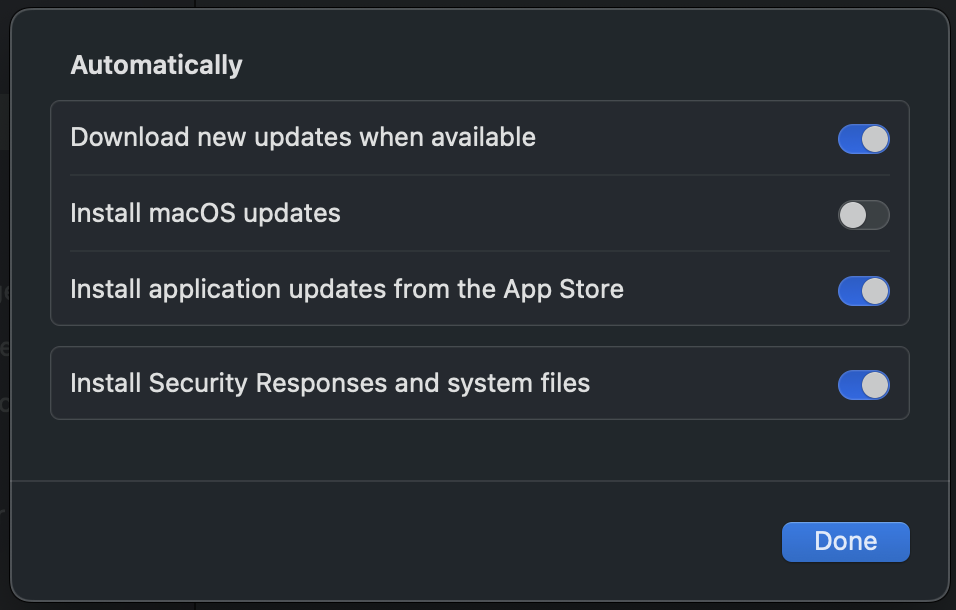
Stop your mac from automatically updating the OS! In System Settings, General, Software Update, click on the info icon next to “Automatic Updates” and uncheck “Install macOS updates”.
| Date | Apple Requirement / Release | Recommended Action | Why |
|---|---|---|---|
| Apr 2026 | Requirement bump to iOS 26 SDK (Xcode 26) for submissions min iOS 15 | Update to macOS 26 & Xcode 26 | You’ll be exactly on the minimum iOS requirement |
| Late 2026 | macOS 27 releases | Hold off until after Apr 2027 SDK bump | Keeps you able to release to older iPhones. |
| Apr 2027 (expected) | Likely bump to iOS 27 SDK (Xcode 27) for submissions min iOS 16 | Update to Xcode 27 | Keeps you aligned with App Store rules without jumping too far ahead. |
| Late 2027 | macOS 27 releases | Hold off until after Apr 2028 SDK bump | Avoid adopting SDKs 2+ years ahead of requirement. |
| Apr 2028 (expected) | Likely bump to iOS 27 SDK (Xcode 27) for submissions min iOS 17 | Update to macOS 27 + Xcode 27 | Keeps you current while still supporting older devices. |
Delay Xcode upgrade
There’s a window each year where the new Xcode version is out but not required by the App Store. Delaying the upgrade to Xcode will help your users with older devices be able to install and upgrade. There are a couple of ways of doing this – but only if the version of Xcode you need to support older devices works with your macOS version (see above).
Xcode version control
Instead of installing Xcode from the App Store and getting your version automatically upgraded, you can choose which version you want outside the App Store. You can even keep several versions around for testing (if you are using Xcode for other kinds of projects outside of SAB). Usually just install the lowest version you can and still release to the App Store.
(If you’ve already Xcode installed, you can uninstall the App Store version).
The Xcodes app (not to be confused with Xcode itself) allows you to easily manage your Xcode installations. You can install one or a few versions.
Below you can see that when I took this screenshot I had 16.4 installed, with Xcode 26 available.
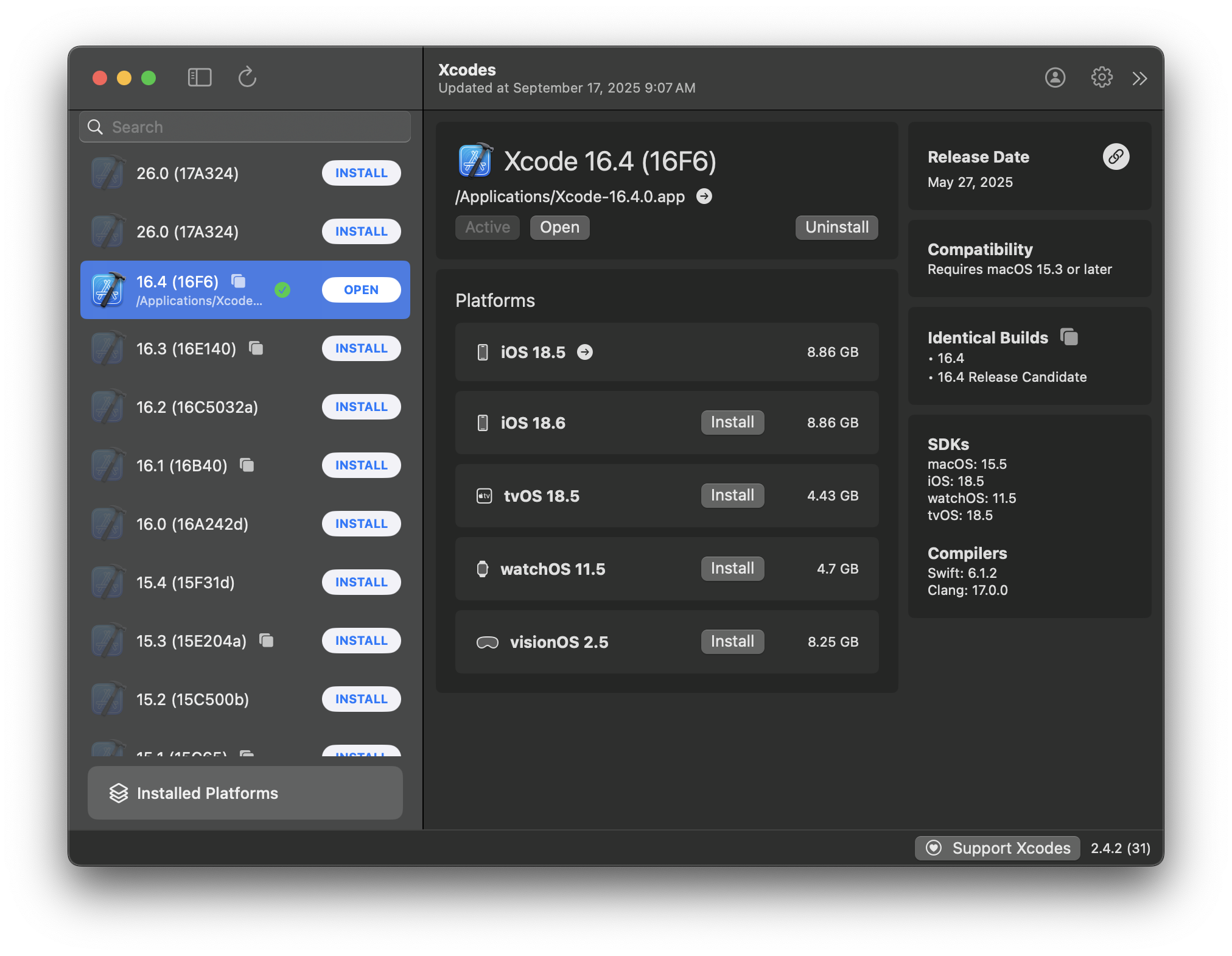
When you add a new version of Xcode, if it’s not the only one available on your machine, you can make a version the active version by clicking on Make Active on the right pane after selecting that version. Below clicking on Make Active would make 15.3 the version that SAB uses when building.

Manually install Xcode
You can also download and install a version outside of Xcodes and the App Store by direct download and install.
(If you’ve already Xcode installed, you can uninstall the App Store version).
First check out this page to see what the current Xcode requirement is – search for “minimum requirements”.
Then go to this page to grab that minimum version:
It will not auto-update, so you’ll have to manually update it when the requirement changes. You’ll know when Transporter rejects your build for not being up to date with the requirement.

Wrapping up
iOS version creep is a headache that Apple is creating for us needlessly – and long term there is no solution as eventually the App Store requirements will catch up with us each year, but we can at least widen the update window for our users while still taking advantage of macOS security and feature updates.