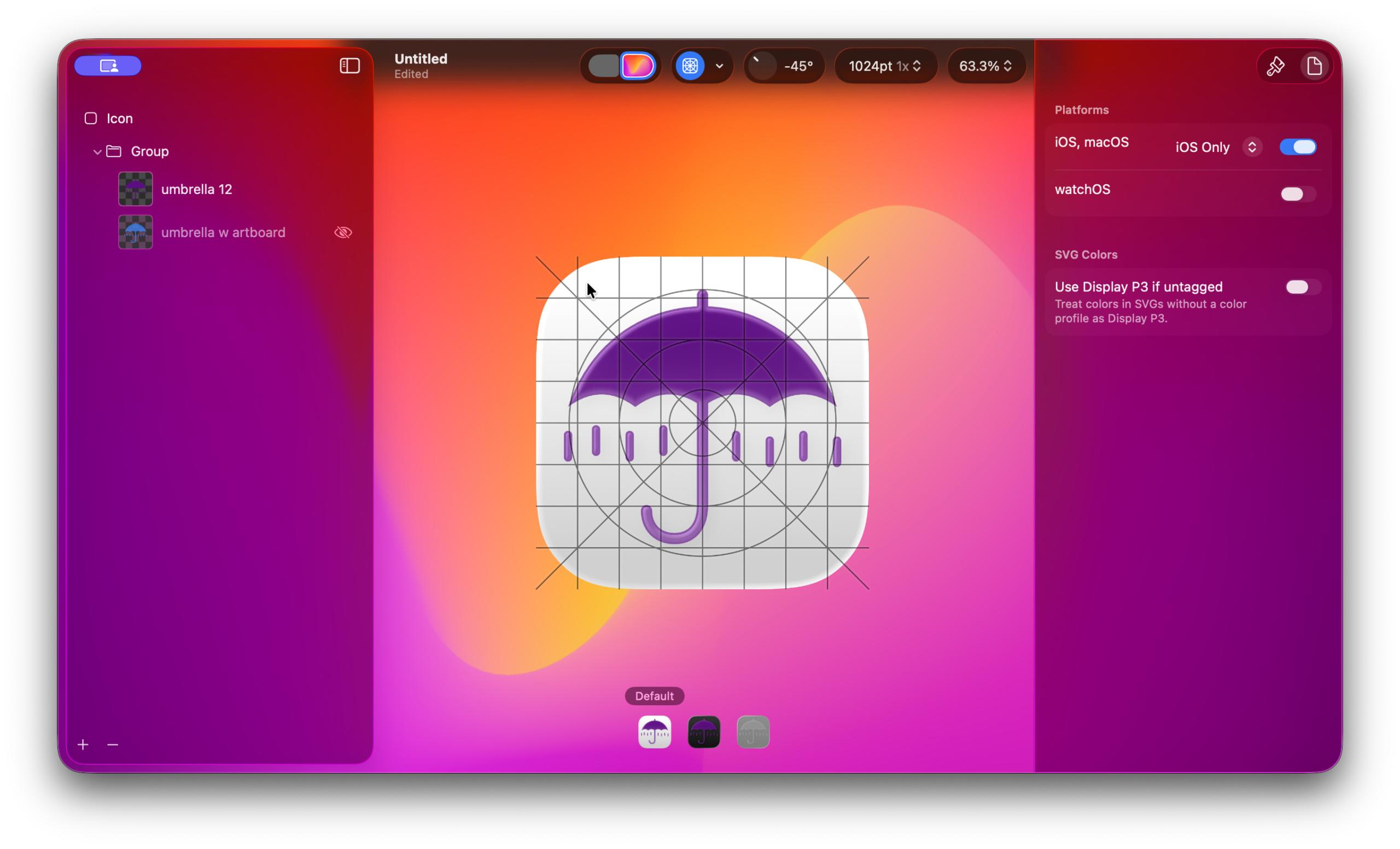
With iOS 26, Apple introduced a number of changes, including to how icons work. Instead of having app builders make their icons in any application, they now are recommending the use of Icon Composer, which comes free in Xcode. The interface looks simple but process of getting usable icons is a bit more complex than it appears. I want to give you a quick cheat sheet that will get you started making icons with greater ease in Icon Composer.
First things
This is more or less for those creating an icon outside of the icons that come with SAB. If you have an icon you like already, no need to add a Liquid Glass one, Apple will continue to take those legacy icons. You can stop here!
I’m assuming most reading are SAB app builders – this article will still be useful if you make apps via another method – you’ll know where to alter the process for your apps.
Let’s get started
If you are ready to go into making or refining your icon, the first step is to make your icon – that’s a whole process in itself – and when you are ready to go, export your icon file as an all-white svg or png image, even if your icon should be colored.
Icon Composer works great when you bring your white images and recolor them inside the app.
Open up Icon Composer – you can click on Launcher (where your apps live) or click Command ⌘ + space and type “Icon Composer”.
Create a New Document.
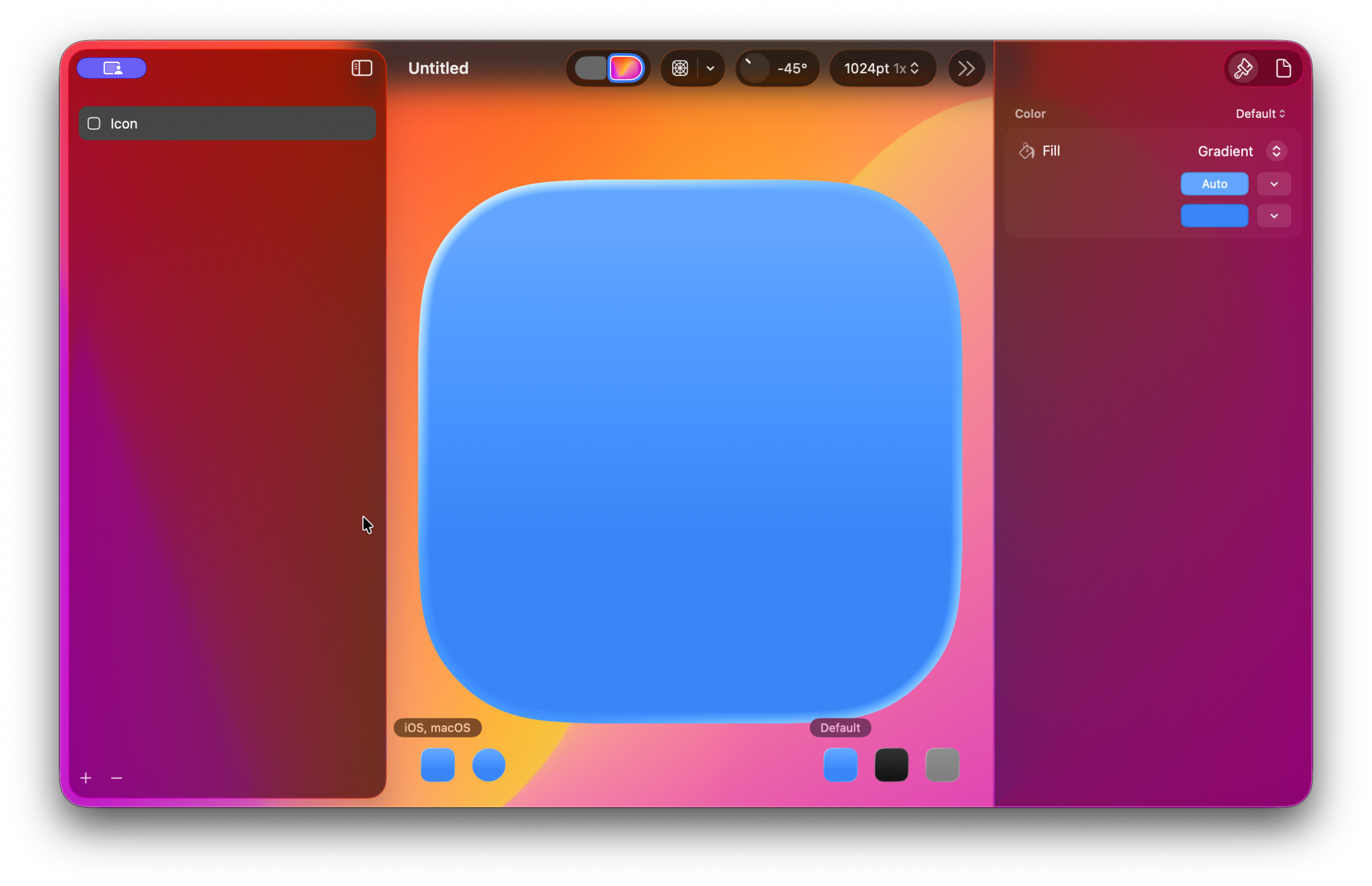
Now in the top left, click the Document icon and choose iOS only and turn off watchOS.
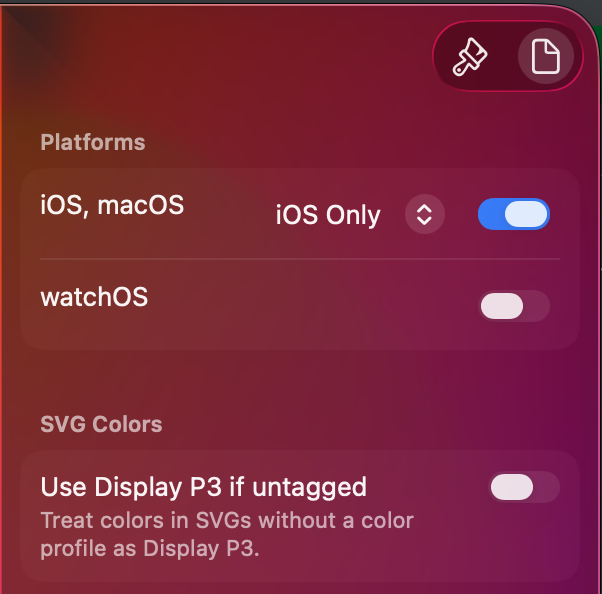
Click on the paintbrush icon and choose white for the top gradient and grey for the bottom. (Feel free to choose different colors.)
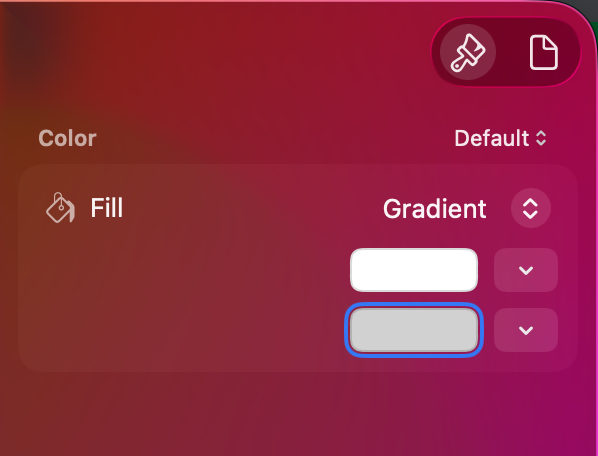
Now drag your svg or png file to Icon at the left side of the screen. It will automatically make a group and put your image inside it. You will likely see a white icon on a background of white and grey gradient – that’s ok, we’ll take care of coloring it now. Make sure you’ve clicked on your icon at the left to select it, and you will see some options to the right.
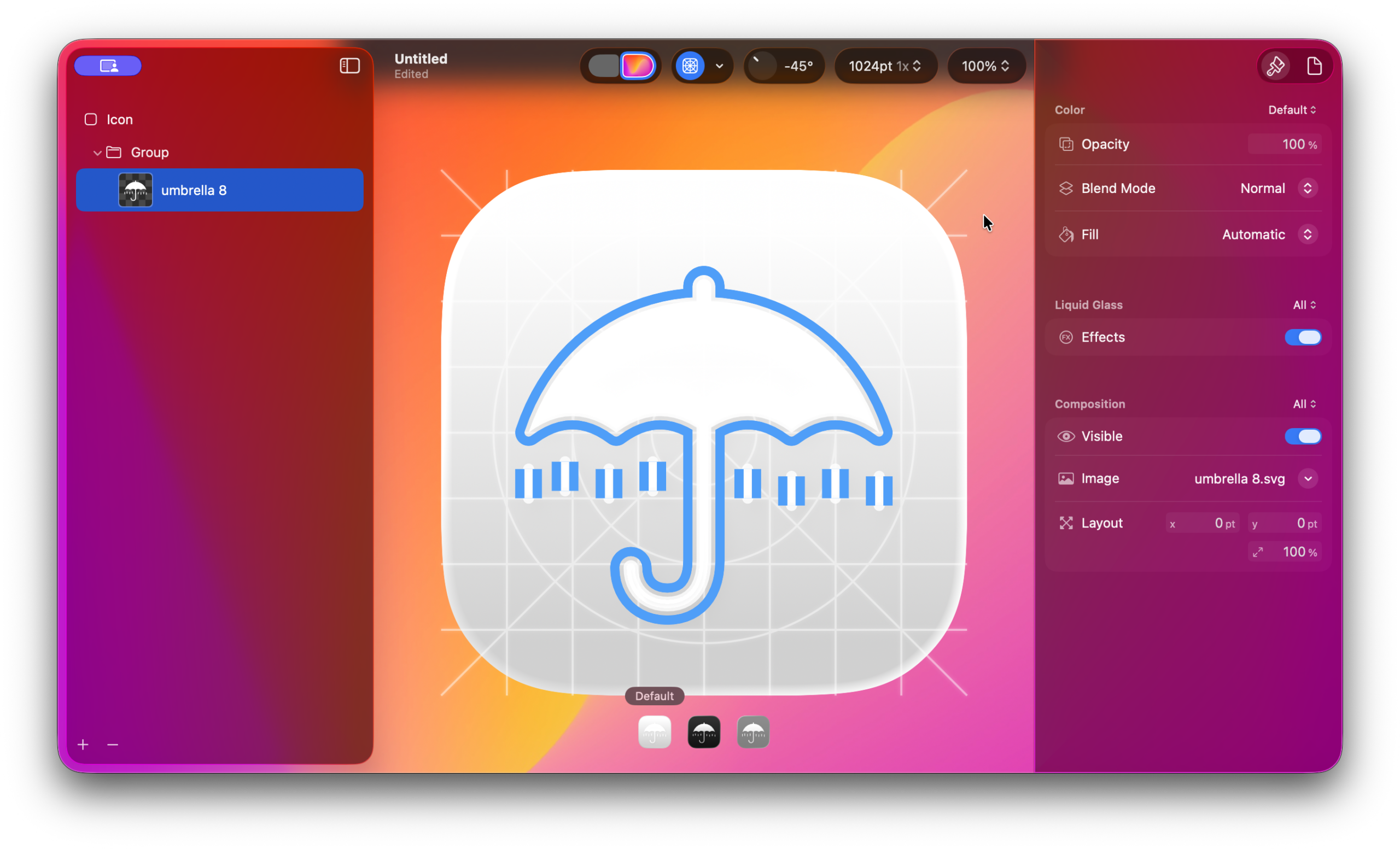
(With all the illustrations in this article, if the image is too small, click on it and it will open in a new larger view.)
Color: under Fill, change the kind to Solid and the color to your desired color – for this project my icon color should be purple.
Liquid Glass: It’s up to you if your design is better off with or without these effects.
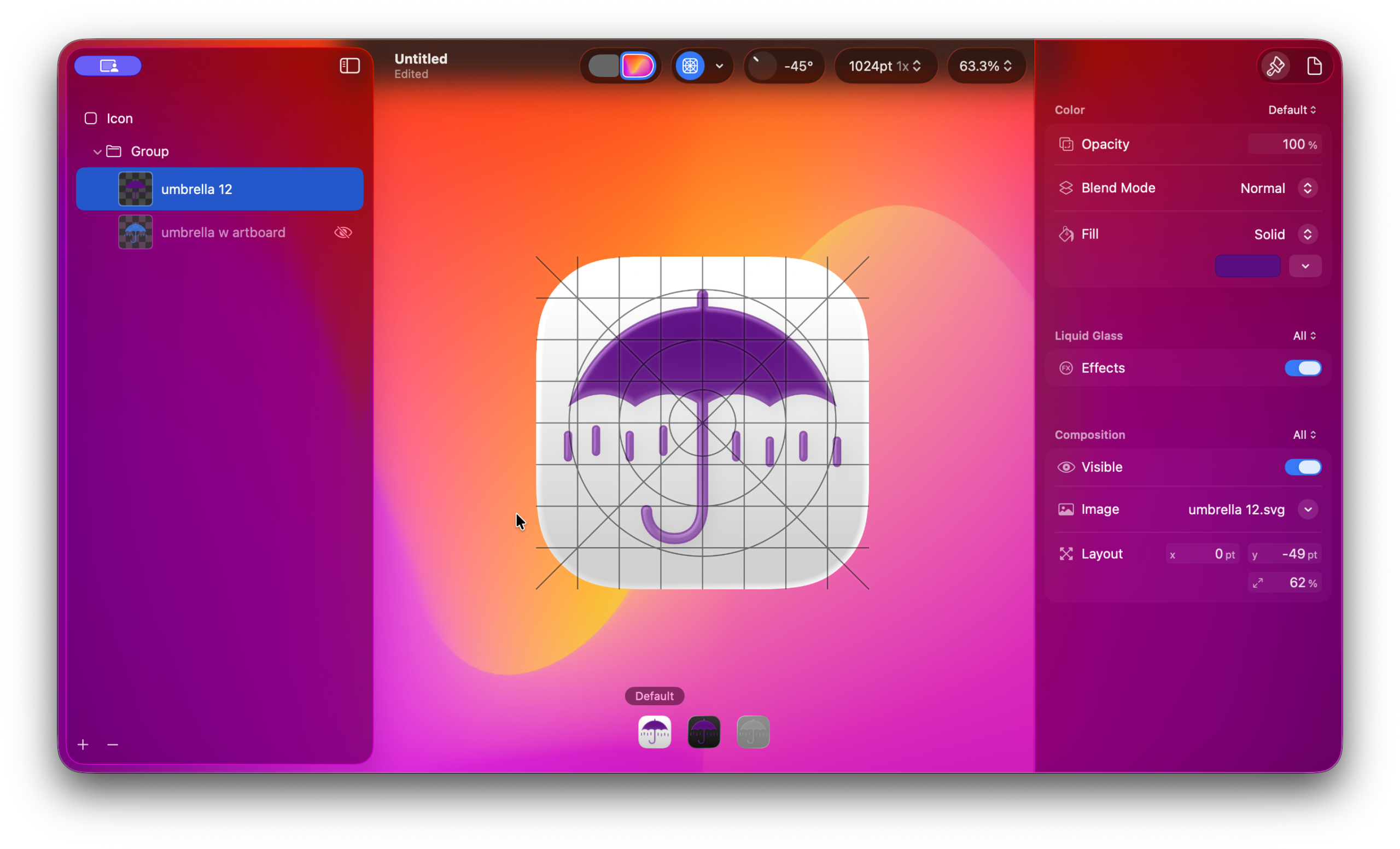
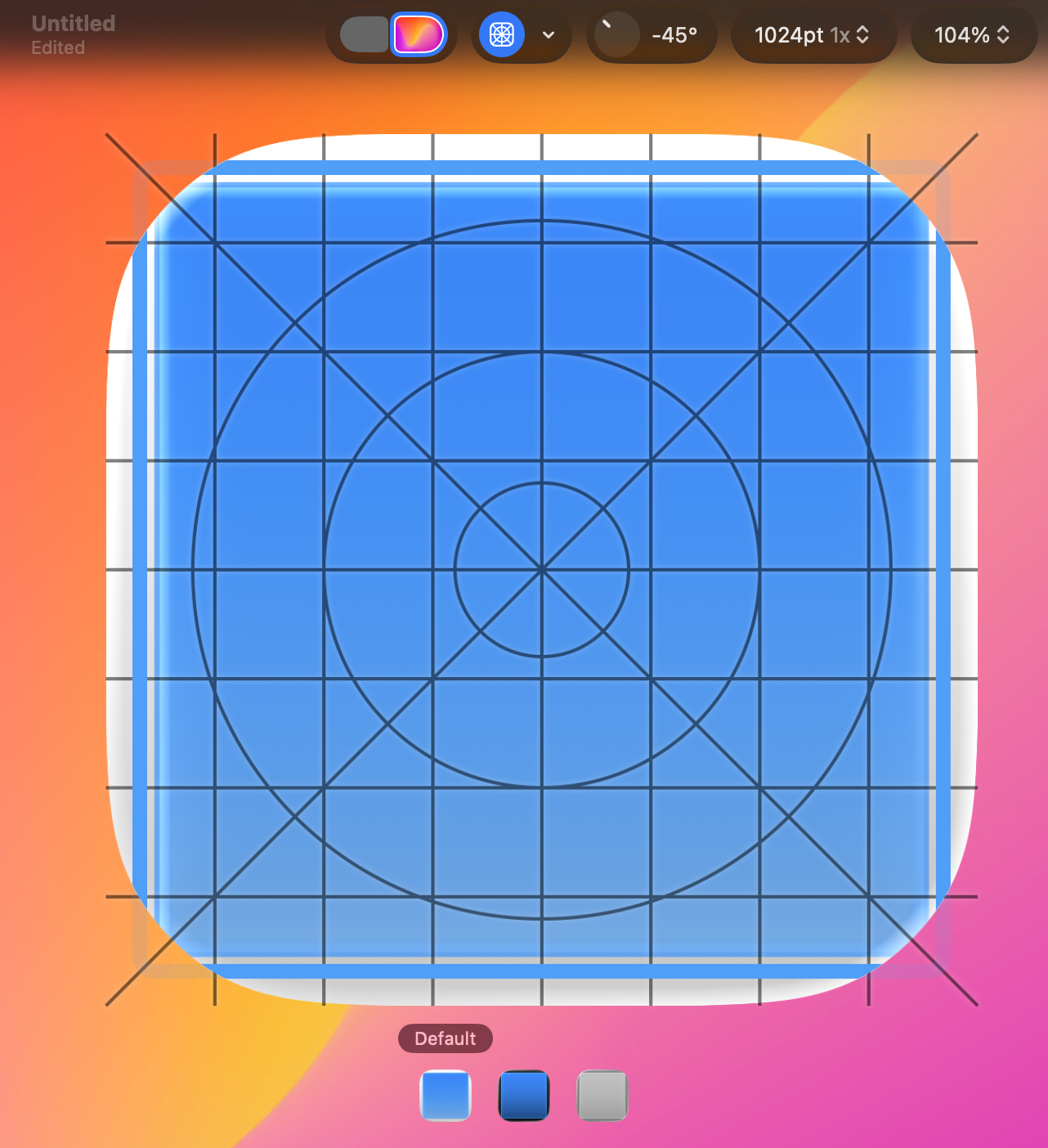
❓❓ If you are using svg format and see something like this when you choose a color fill, you have an invisible rectangle over your art.
If you are using Affinity to make your svg, you can go to Document, Pages, and click Convert Artboard to Spreads, and then re-export the svg file.
If you are using another method to make your svg, you can open the svg file in the TextEdit app, search for the <rect> tag, and simply delete it. It will look something like:
<rect id=”Artboard1″ x=”0″ y=”0″ width=”910.222″ height=”910.222″ style=”fill:none;”/>
Delete the earlier version from Icon Composer and import the corrected version just by dragging it into the window.
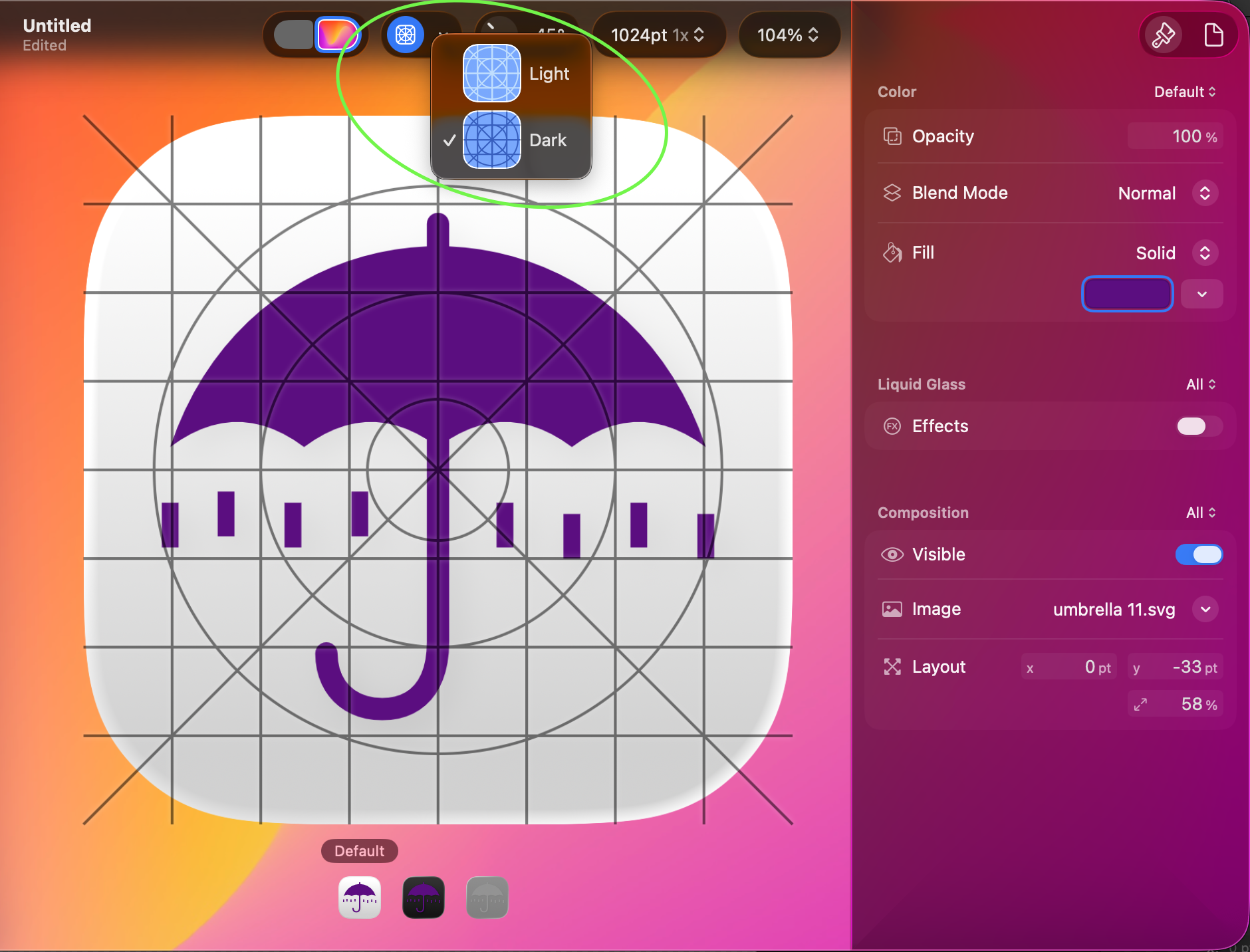
Composition: If your icon is not the right size relative to the icon background, you can go down to Layout and click on the percentage box to grow or shrink the icon size. I used the y-coordinate box to move my icon up a bit. Make sure to use the guides in the toolbar above to get the right fit – it should be completely inside the biggest circle. My guides were Light, so I changed them to Dark to make it easier to see.
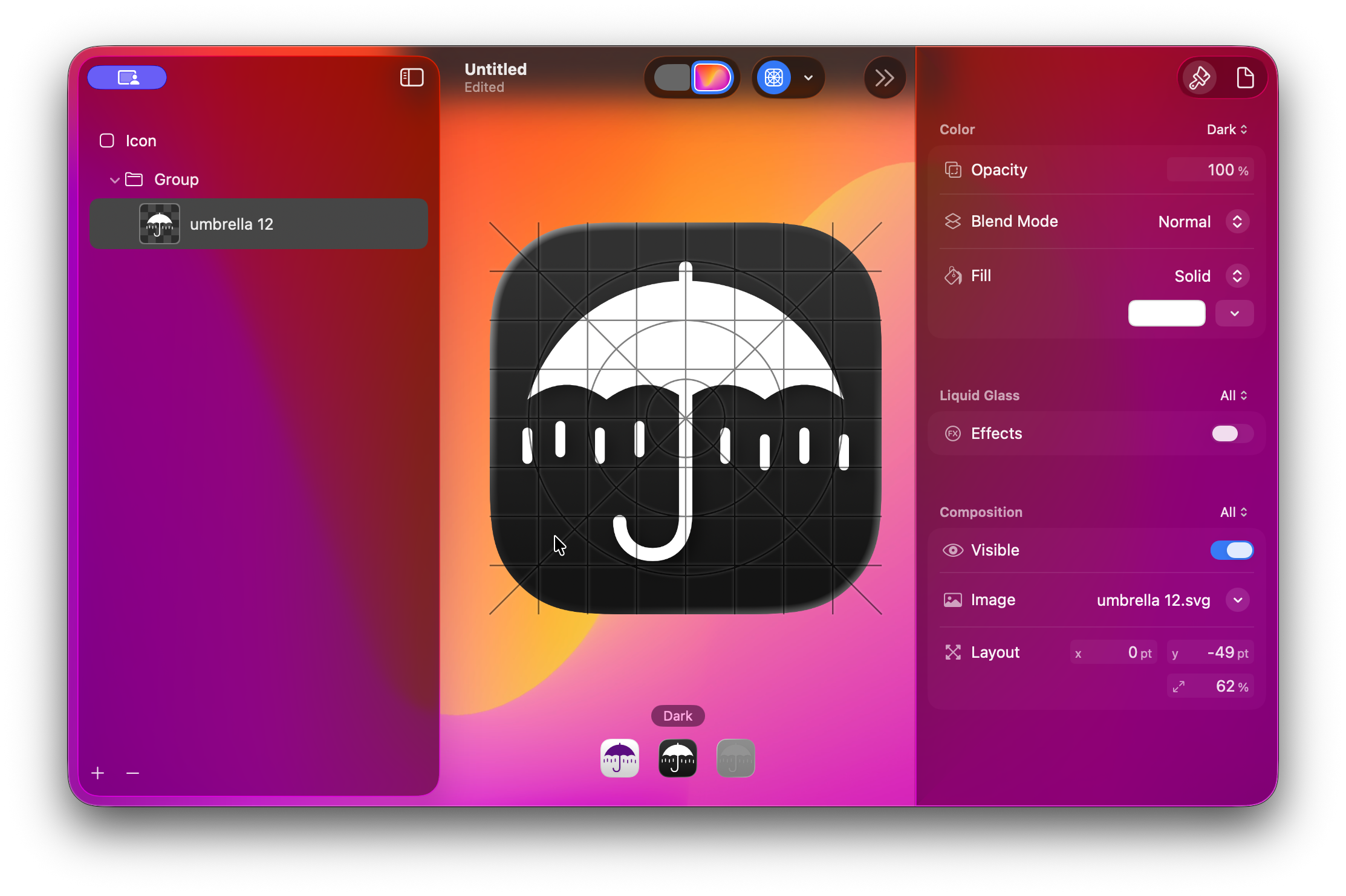
At this point, we’re set up to go to the alternate versions for Dark and Monochrome icons. On the bottom of the screen you’ll see three icons, dark, light, and grey. Click on the dark one. Make sure your illustration is showing, and click on Color – make sure it says Dark there and change the Fill to white.
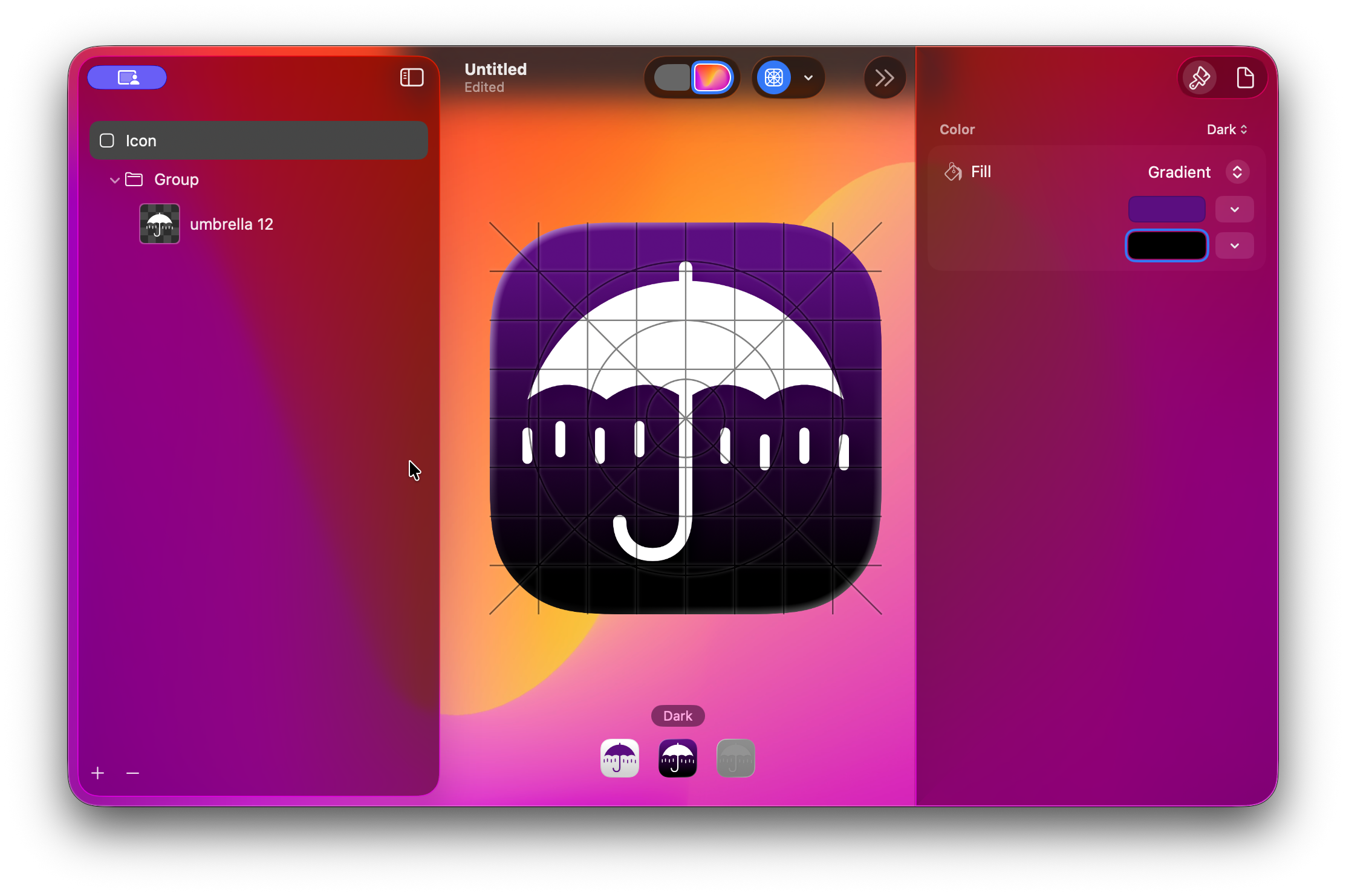
Now click back up on Icon at the right rather than on your image. You’re now changing the backround of the icon. At right, make sure next to Color it says Dark. Then you can choose a custom color for the background – here I’ve done a purple fading to black gradient – same purple as my icon in the light version.
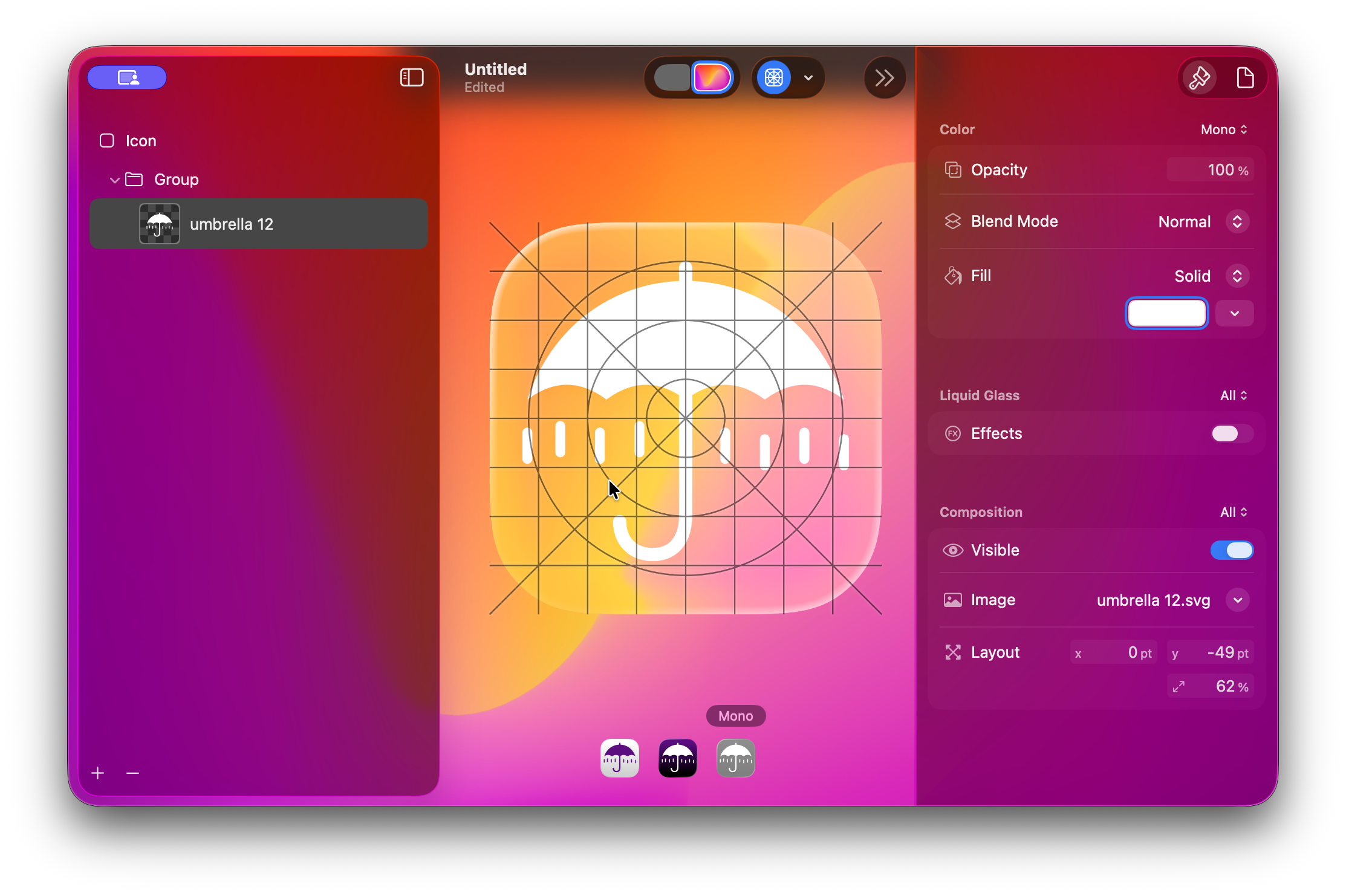
Dark is done – now click back on the image, click on the Mono icon at bottom, and choose again for Color: Mono, and Fill: Solid white.
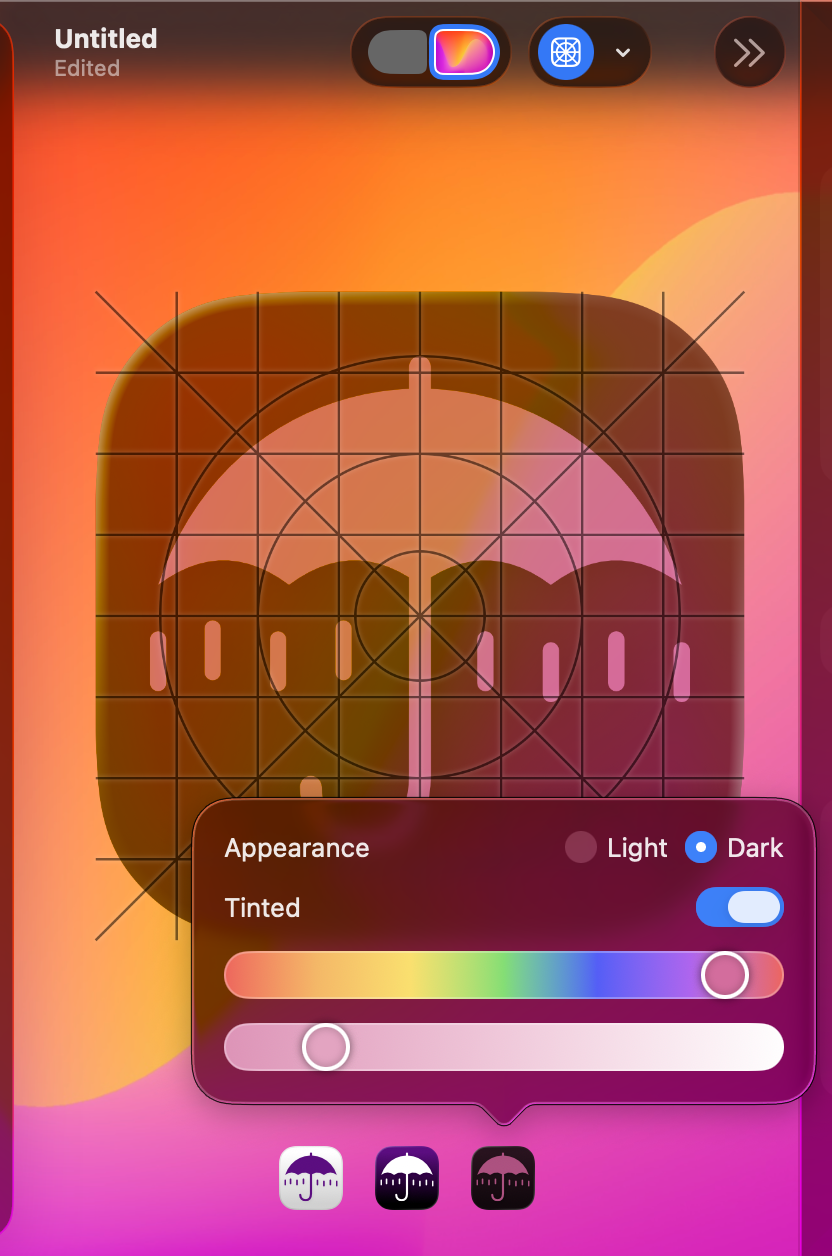
Now you can click on the small button just above the monochrome icon – when you hover over it, the text changes to Options… and you get this interface where you can see all of the options that are available to users to make sure everything is working right.
You’ve probably seen lots of little things you want to play with – gradients rather than solids, different blend methods, etc. When you’re ready, simply save, close Icon Comoposer, and import your icon into SAB on the Appearance/Icons/iOS Liquid Glass Icon tab.
Further customization with layers
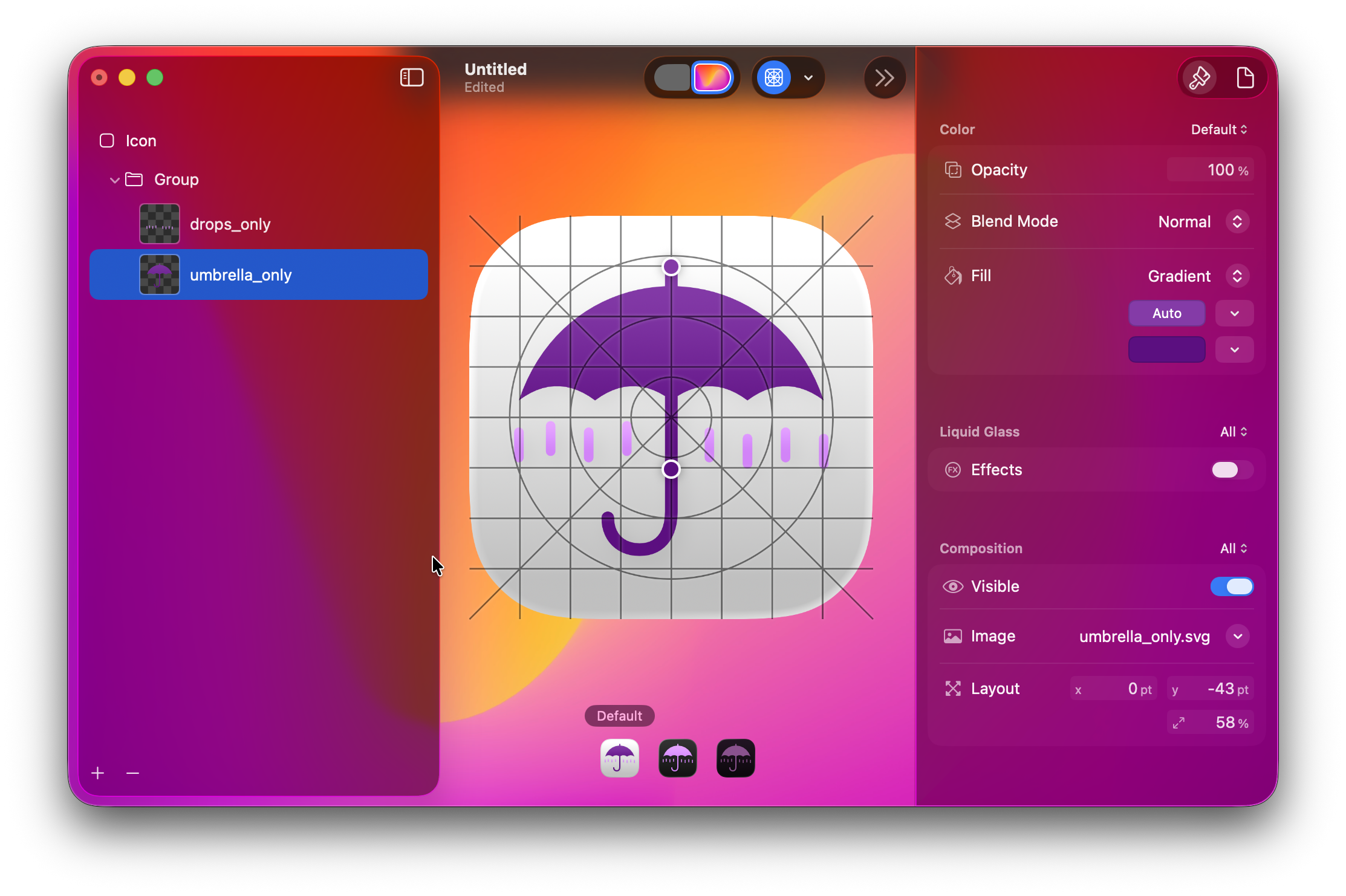
If you want to do multicolored icons, you can do that – export your icon as different svg or png images. That way you can recolor them separately. Here I have the umbrella as one image, and the drops as another. I can set the umbrella as a gradient and the drops as a separate gradient. (Try choosing the bottom color and clicking Use Automatic Color for the top.)
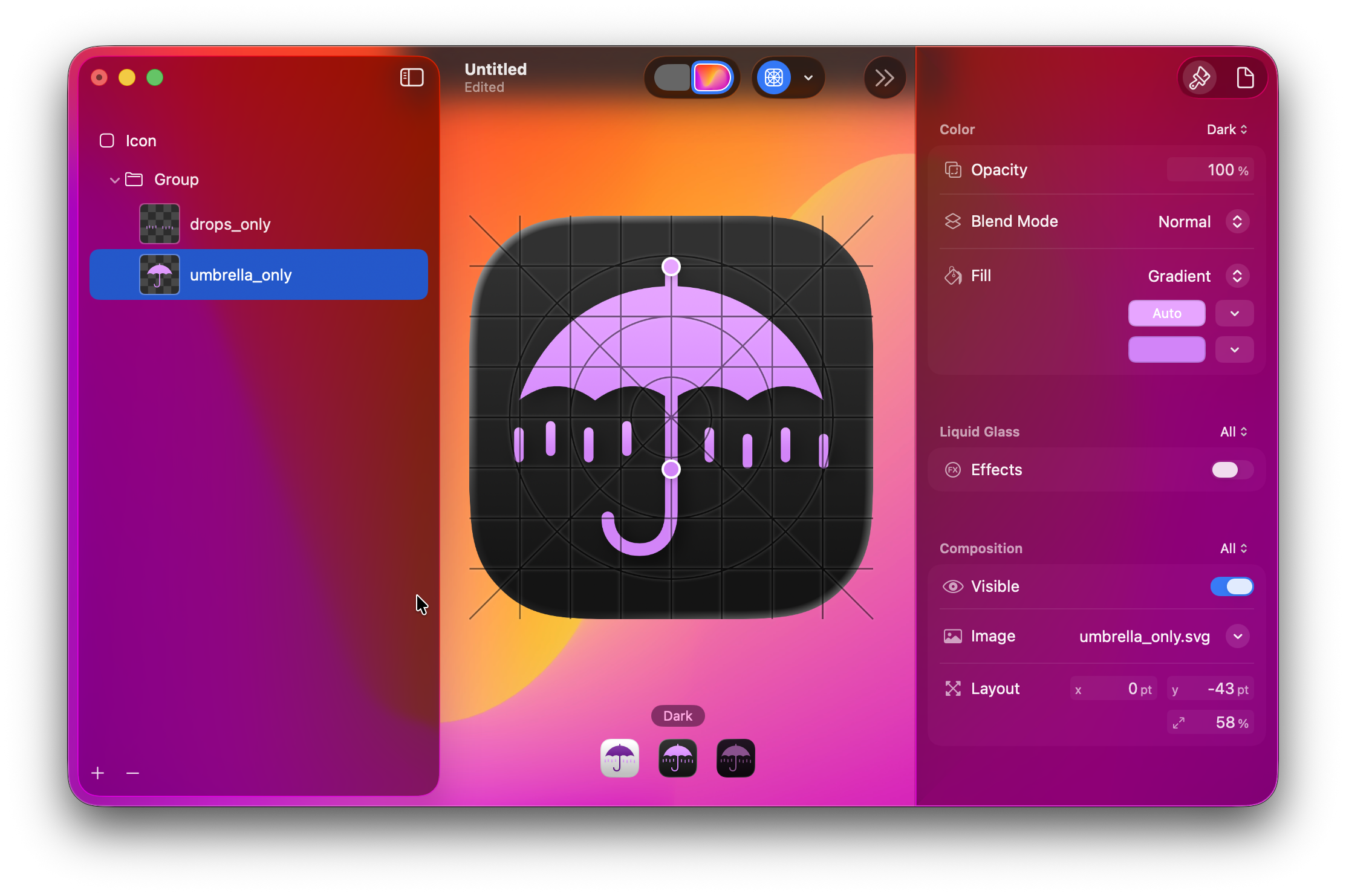
For Dark mode, I went with that lighter color, and made both the same lighter color – you could also do white with pink, or something else.
And finally I have the monochrome both in white:
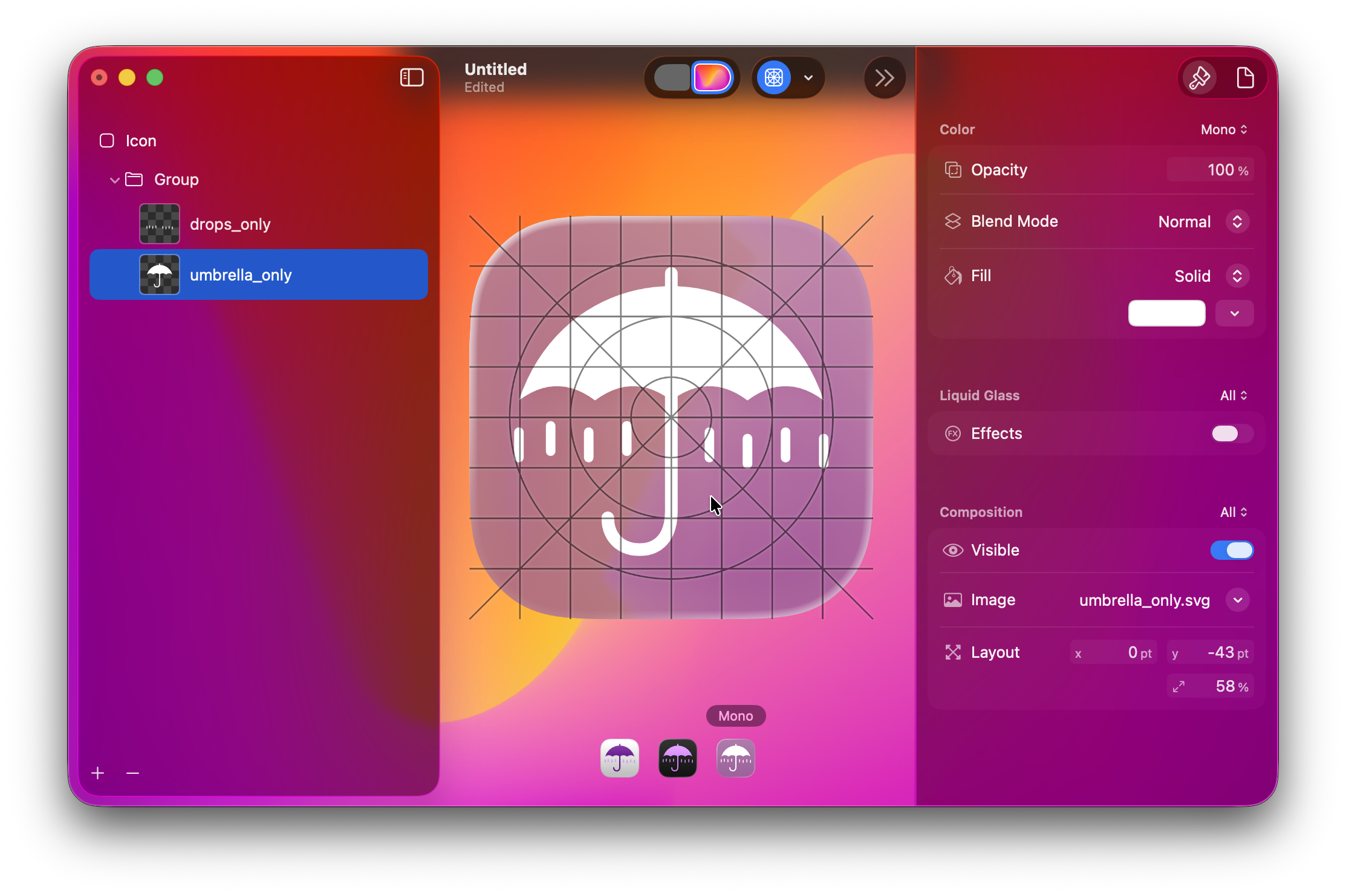
But I could also do a different opacity to make some levels in the image – here I have the drops at 50% opacity (under Color).
Why not try opacity at 50% for the drops in light and dark mode? Different colors in the gradients for the drops, or maybe reverse the top and bottom gradients from the umbrella to the drops…
Wrapping up
It’s your turn now to experiment. Hopefully this opens the door to making your icons look like you want them to!